
Getting started
How Old Skool Board works
Old Skool Board is an extension of a Jira Software board — there is no need to create new boards from scratch. When you open it, it reads the configuration of whichever board you're currently viewing — columns, statuses, and board type (Kanban or Scrum) — and mirrors that setup automatically.
It picks up where your board leaves off. On Kanban boards you see everything on the board; on Scrum boards, the active sprint.
Requirements
- Jira Software board — designed to work with existing Scrum or Kanban boards; other board types are not supported
- Jira Cloud — Server and Data Center are not supported
- Desktop browser — mobile and tablet are not supported
- Parent items with sub-tasks — the board's value comes from that relationship; it has limited use for work items without sub-tasks
- For reordering — parent items need your board's filter ordered by Rank (as Jira's default board filters are) and Jira's Schedule work items and Edit work items permissions. Reordering sub-tasks needs the same Jira permissions, but not a board filter ordered by Rank.
How the board works best
Old Skool Board places each work item in whichever of your board's columns holds its status, just as Jira does. Sub-tasks appear in lanes inside the expanded column. The lanes are your board's own columns that hold sub-task statuses, so each sub-task sits in the lane that holds its status.
This means the board works with any workflow structure you already have.
That said, we've found it works best when:
- Sub-tasks have their own dedicated workflow, separate from work items
- Every status in your board's workflow is in a column, so no work item ends up under Unmapped work items and no sub-task is hidden
When work items are kept simple and sub-tasks carry the detail, the expanded column becomes a genuinely useful view of what's actually happening inside each item. But how you structure your Jira project is entirely up to you.
Installing
Find Old Skool Board on the Atlassian Marketplace and install it to your Jira Cloud site. Once installed, it appears as a page inside your Jira projects.
Opening the board
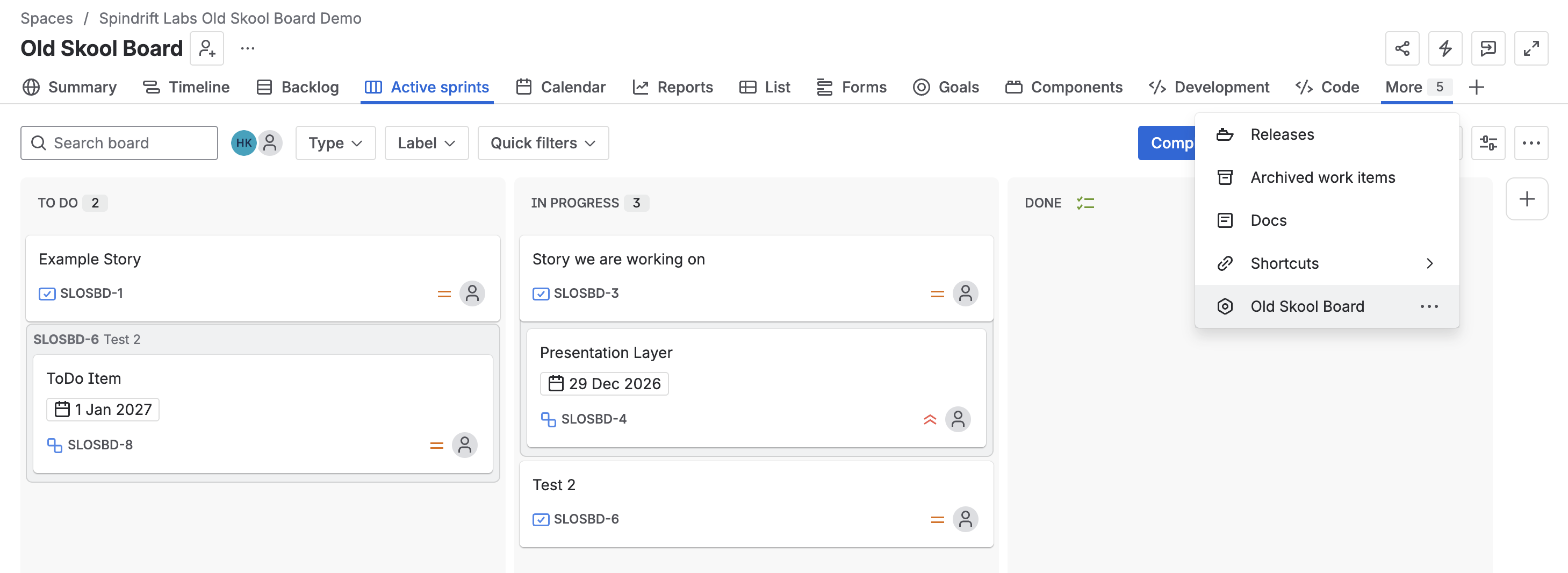
Navigate to a Jira project and click More in the top navigation bar. In the dropdown, select Old Skool Board to open the board.
Board settings
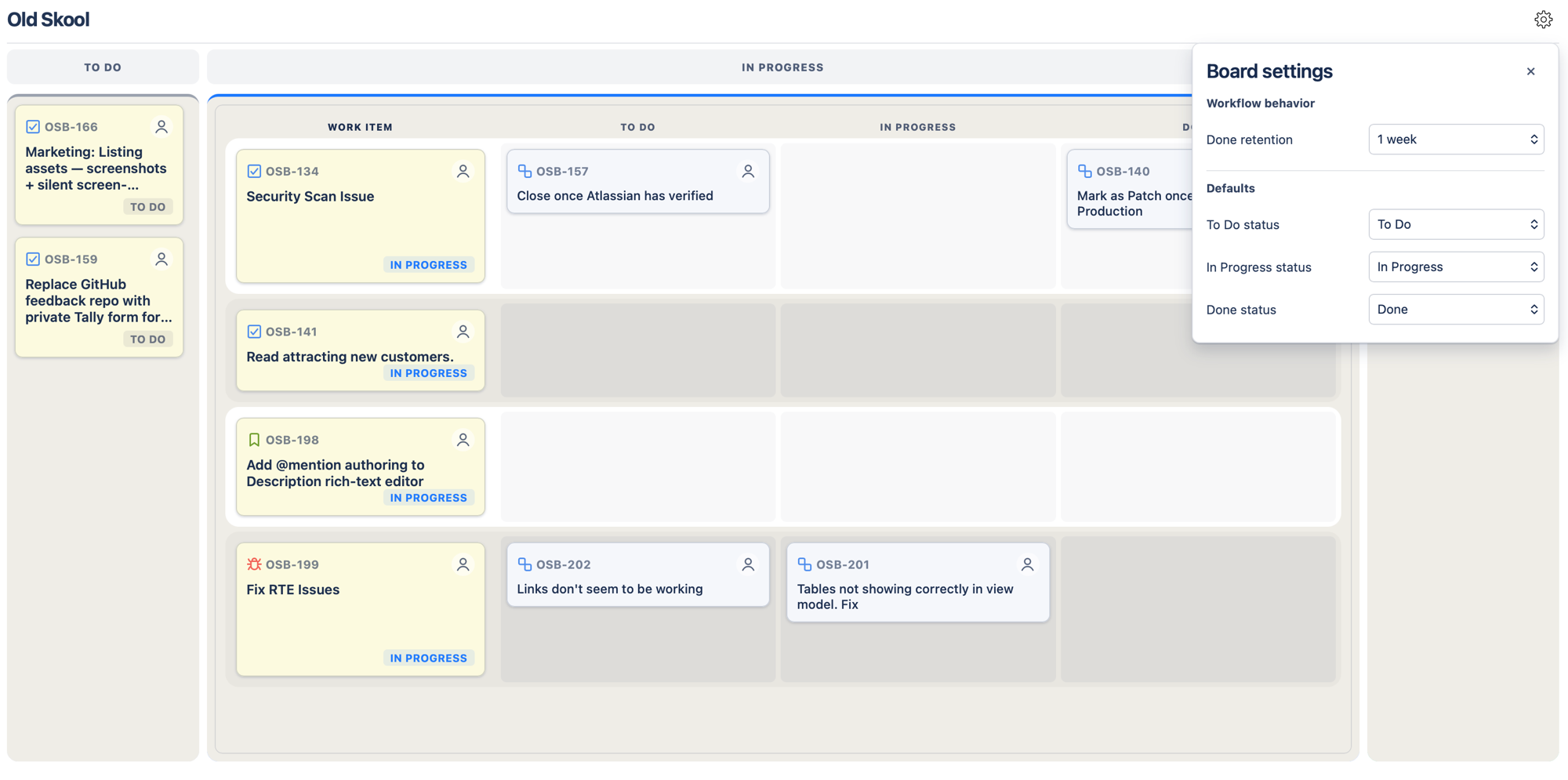
There's nothing to set up: the board reads its columns and statuses from Jira. Click the settings cog in the top-right corner of the board to open the Board settings panel. From here you can set:
- Done retention (company-managed Kanban boards only) — hide completed items that haven't been updated in 1, 2, or 4 weeks
On other boards there are no settings to change yet. Settings are saved per board, for your account.
Known limitations
- Backlog columns — columns with "Backlog" in their name are not shown. On Kanban boards, work items whose status only appears in a backlog column are not shown either; on Scrum boards they appear under Unmapped work items.
- Scrum boards without an active sprint — the board is empty until a sprint is started.
- Parallel sprints — if a Scrum board has several active sprints, only one is shown.
- Creating on Scrum boards — new work items go to your Jira backlog, not the active sprint, so they won't stay on the board until they're added to the sprint.
- Done retention — available on company-managed Kanban boards only.
- Unmapped sub-task statuses — a sub-task whose status isn't in any column isn't shown on the board, as on Jira's own board. It stays listed in its parent item's details. Add its status to a column in your Jira board settings to show it.
- Reordering parent items — needs a board filter ordered by Rank and Jira's Schedule work items and Edit work items permissions. Without them, you can still change a work item's status.
- Reordering sub-tasks — needs the same Jira permissions, but not a board filter ordered by Rank. If Jira refuses, sub-task order is read-only until the board reloads; you can still change a sub-task's status.
- Dragging sub-tasks — the dragged card can disappear when the pointer leaves the lane area, or drift away from the pointer when the lanes scroll sideways.
- Mouse only — dragging work items has no keyboard equivalent; you can change status from the work item's details instead.